Mac Multiple Displays Rearrange on Wake? Fix Monitor Reset Issues After Sleep
Mac Multiple Displays Rearrange on Wake? Fix Monitor Reset Issues After Sleep
If you use multiple monitors on a Mac, you’ve probably experienced this:
You wake your Mac from sleep…
and suddenly everything is wrong.
Your displays are rearranged
Your main monitor is now mirrored
Windows are scattered across screens
Apps are no longer where you left them
This is one of the most frustrating multi-monitor issues on macOS, and it’s been around for years.
Let’s break down why it happens, what you can try to fix it, and a better way to deal with it entirely.
Why Mac Displays Rearrange After Sleep
There isn’t a single clear reason, but it usually comes down to how macOS detects external monitors.
When your Mac goes to sleep, your displays disconnect temporarily.
When it wakes up, macOS tries to reconnect everything — but it doesn’t always restore the exact same configuration.
This can cause:
display positions to reset
monitors to swap left/right
resolution changes
mirroring to activate unexpectedly
The EDID Problem (Why Identical Monitors Make It Worse)
One of the more technical causes involves something called EDID (Extended Display Identification Data).
This is how your Mac identifies each monitor.
If you’re using:
identical monitors
from the same batch
with similar EDID data
macOS can struggle to tell them apart when reconnecting after sleep.
So instead of restoring your layout correctly, it may:
assign displays randomly
swap positions
move windows unpredictably
This is why some setups seem fine… while others constantly break.
Common Fixes (That Sometimes Work)
There are a few things people try to reduce the issue.
1. Turn off “Displays have separate Spaces”
Go to:
System Settings → Desktop & Dock → Mission Control
Disable:
👉 Displays have separate Spaces
This can sometimes stabilize multi-monitor behavior, but it’s not a complete fix.
2. Reconnect monitors in a consistent order
Using the same ports and cables can help reduce randomness — especially if EDID conflicts are involved.
3. Avoid sleep (not ideal)
Some people disable display sleep entirely to avoid triggering the issue.
Not exactly a great solution.
The Real Problem
Even if you partially fix it:
👉 macOS still doesn’t reliably restore your workspace
Which means:
you lose your layout
you waste time fixing things repeatedly
you lose your flow and productivity momentum
A Better Approach: Restore Your Workspace Instantly
Instead of trying to prevent the issue entirely, a better solution is:
👉 restore your entire setup in one action
That’s exactly what Dirisha is designed for.
How Dirisha Solves This
With Dirisha, you can:
save your full workspace (apps + window positions)
restore everything instantly
bring your layout back after sleep or reconnecting monitors
let's you get back into your flow state and get things done
So even if mac rearranges your displays and messes up your workspace:
👉 you don’t have to fix it manually anymore
Example
Let’s say you had:
Chrome on your macbook's screen
Safari on your main external monitor
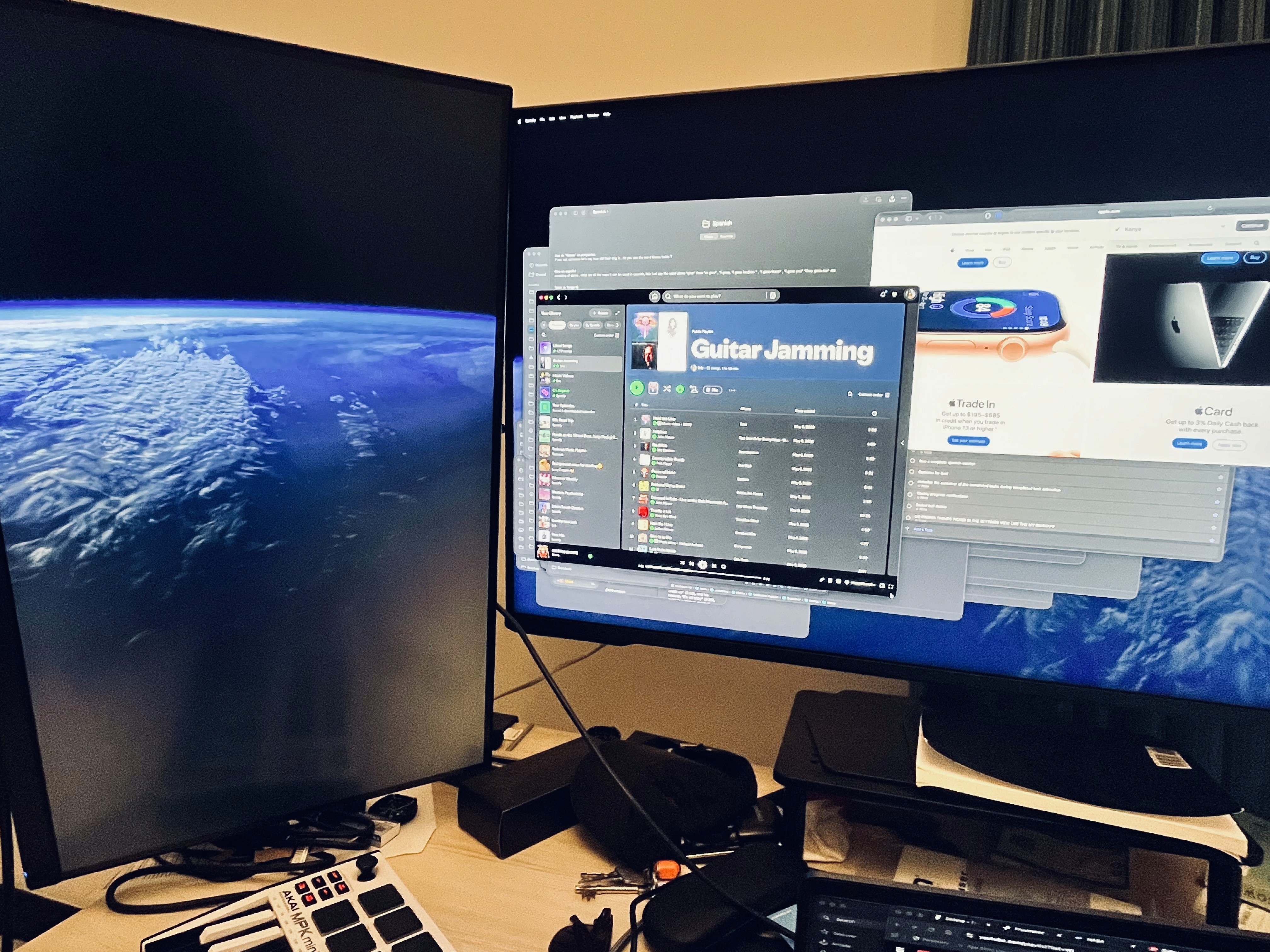
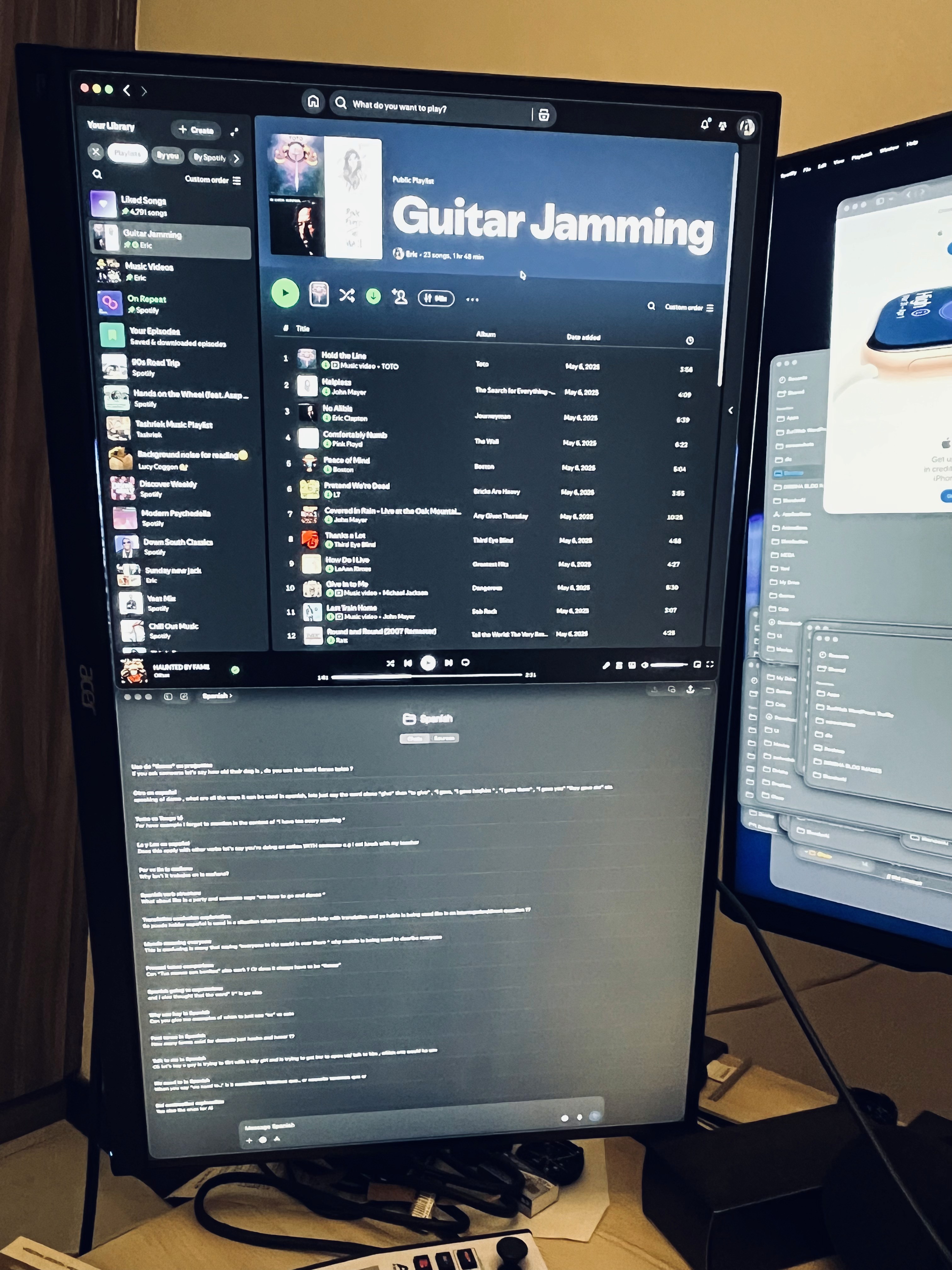
Spotify & ChatGPT on your vertical monitor
After waking your Mac, everything is scattered back to one display.
With Dirisha:
👉 you can send groups of apps back to where they were with 1 click
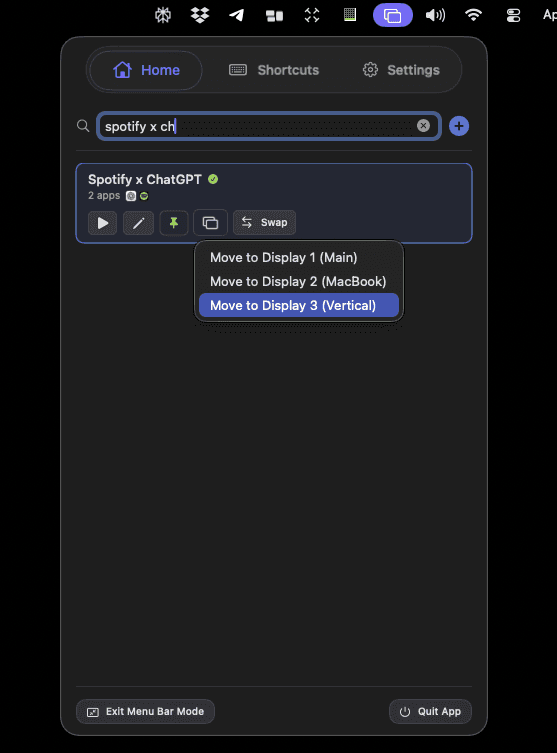
My Spotify and ChatGPT layout instantly restores back to my vertical monitor.
Why This Works Better
Because instead of relying on the system to remember:
👉 you define the layout yourself
And reapply it whenever needed.
Final Thoughts
If your monitors keep rearranging every time your Mac wakes from sleep, you’ve probably realized by now — this isn’t something that reliably fixes itself.
You can try:
tweaking settings
changing cables
experimenting with configurations
But none of those guarantee a consistent experience.
If you want something reliable:
👉 it’s easier to restore your workspace than fight the system
Try Dirisha
If you’re dealing with constant display resets or window chaos after sleep, Dirisha makes it simple:
save your setup
restore it anytime
stay in flow